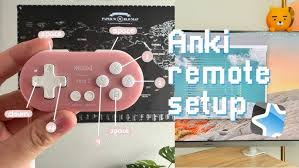

A full MODI Anki remote connection reset means clearing the software relationship first: charge the remote, let it wake cleanly, forget every saved MODI or Anki remote entry on the host device, restart that device, then pair again in the mode you actually plan to use. This checklist is for situations where ordinary reconnecting has failed, but the remote has not been physically damaged and you are not trying unsupported repair or firmware work.
Use this as a last-resort reset for Bluetooth state, not as proof that one part is at fault. MODI is an independent Bluetooth accessory for Anki review workflows; Anki, AnkiMobile, AnkiDroid, desktop operating systems, and device Bluetooth settings each keep their own input or pairing state. If the remote connects but buttons do nothing, the next step is still software-side: remove stale pairings, restart the host, reconnect, and test one simple review action before changing anything else. For a concrete example of these controls in one device, Bluetooth Anki remote documents its supported platforms, connection modes, and setup paths.
Power
Start with power because a reset checklist is easier to read when the remote is not sleeping, low, or stuck between connection attempts. Charge MODI before troubleshooting if the battery status is uncertain. The manual identifies a quick red LED flash as low battery, green flashing while charging, and the charging LED turning off when charging is complete. Those signals should not be converted into battery percentages or exact remaining time, because the manual does not define them that way.
Wake the remote with Home before pairing. MODI automatically sleeps after about 2.5 minutes without a Bluetooth connection or after 5 minutes of inactivity, so a quiet remote may simply be asleep. To manually sleep or turn it off, hold Home for 3 seconds. If decorative lighting is on, double-click the Light button to turn it off during troubleshooting; this keeps the checklist focused on pairing and avoids extra battery drain while you repeat setup steps.
Pairings
The reset step that fixes many confusing cases is forgetting every saved remote entry, not just the one currently visible at the top of the Bluetooth list. Open Bluetooth settings on the computer, phone, or tablet and remove each saved MODI or Anki remote entry you can find. This matters when the same remote has previously been paired in more than one mode or with more than one host device.
Do the same cleanup when switching between Keyboard Mode and Switch Mode. MODI reconnects in its last-used mode when you press Home, so a device can appear paired while the app is listening for a different input profile. Forgetting the old entries gives the next pairing a clean path. This is also the preferred starting point when moving the remote from one phone, tablet, or computer to another.
Restart
After removing saved entries, restart the host device before pairing again. This is not a claim that the computer or phone caused the issue; it is a practical way to clear stale Bluetooth state, cached controller information, and app-level assumptions left from earlier attempts. Restarting is especially useful after the remote appears connected but remains unresponsive, because the brief specifically recommends trying again after the host device has been restarted.
Keep the remote off or asleep while the host restarts so it does not immediately reconnect to an old profile during shutdown or startup. Once the device is back, open Bluetooth settings first, then wake the remote and choose the correct pairing sequence. If you use multiple devices, make sure nearby computers, tablets, or phones are not grabbing the connection while you are trying to pair with the intended host.
Mode
Choose the mode based on the workflow you are testing, then pair only that mode. For desktop Anki with preset keyboard inputs, use Keyboard Mode: open Bluetooth settings, hold A + Home for one second, and select the MODI connection. A successful Keyboard Mode connection shows a solid green center LED. This default desktop workflow does not require the MODI add-on, so leave add-on troubleshooting aside until the basic keyboard connection responds.
Use Switch Mode when you want the desktop MODI add-on to remap buttons, and for the standard mobile setup in AnkiMobile or AnkiDroid. Open Bluetooth settings, hold Y + Home for one second, then select the MODI connection. A successful Switch Mode connection shows a solid blue center LED.
Test
Test fresh with the smallest possible action before rebuilding every preference. In desktop Keyboard Mode, open a review screen where a keyboard action is meaningful and try a simple reveal or answer action such as Space, Enter, or an answer-button input supported by desktop Anki. If navigation keys work outside Anki but not in Anki, the remaining issue may be app focus, screen state, or the app’s current shortcut behavior, not the Bluetooth pairing itself.
On mobile, test inside the app’s own controller settings before assuming the remote failed. In AnkiMobile, use Settings, Review, then Gamepads to assign actions after iOS recognizes the controller profile. In AnkiDroid, use Settings, Controls, then Set Key Binds. Remember that X-Y-B-A inputs can appear visually as Y-X-A-B in AnkiDroid because of a third-party display mapping issue; assigned commands can still function normally.
Escalation
If the fresh pairing connects and the center LED shows the expected mode color, but no app action works, separate Bluetooth success from app configuration. Try one documented input in a plain text field or another place that accepts keyboard-style input when using Keyboard Mode. For Switch Mode, return to the app’s controller or key bind screen and assign one action at a time. Avoid changing modes repeatedly until you know which layer is failing.
Stop the reset there if the checklist does not change behavior. Do not open the product, attempt battery repair, bypass charging protections, or look for unsupported firmware changes. The next useful information is exact and software-focused: host device, operating system, Anki app version if relevant, selected MODI mode, LED color after pairing, what Bluetooth settings show, and which single button test failed. That detail is enough to continue troubleshooting without guessing or inventing causes.